
By default, when an order includes an out-of-stock product, the entire order is placed on backorder and held until the missing item is restocked. ShipHero also lets you enable partial shipping so in-stock items ship right away and remaining items ship once inventory is replenished.
Partial shipping results in multiple shipments and label charges for the same order.
Review Backordered Orders
Before enabling a one-off partial shipment, identify the affected orders:
-
Go to Orders → Manage Orders.
-
Filter your results using the following criteria:
Filter Setting Order Date We recommend a date range from at least 6 months ago through today. Fulfillment Status Unfulfilled Ready to Ship No On Backorder Yes -
Review the filtered list and note the affected orders.
-
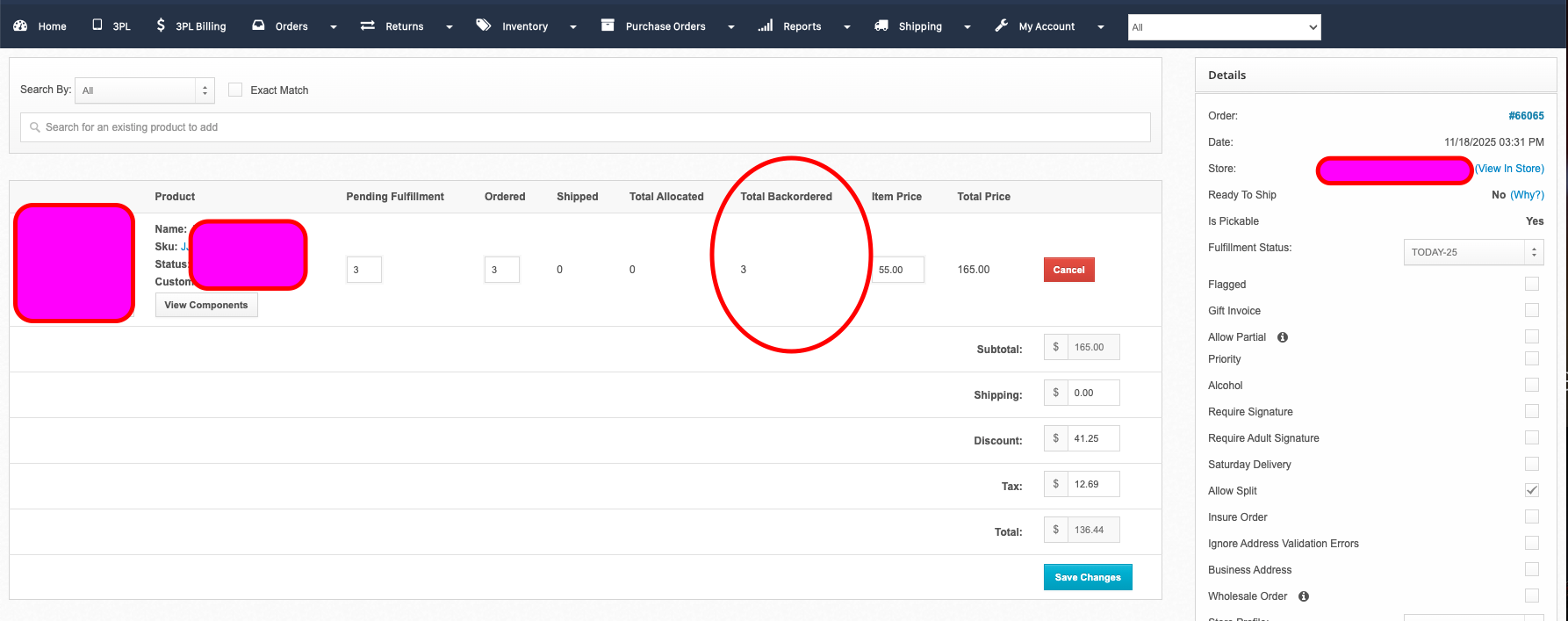
To identify which products are backordered, open an affected order and check the Total Backordered column in the main product table.
Enable Partial Shipping for a Specific Order
- Open the order in ShipHero by clicking the order number.
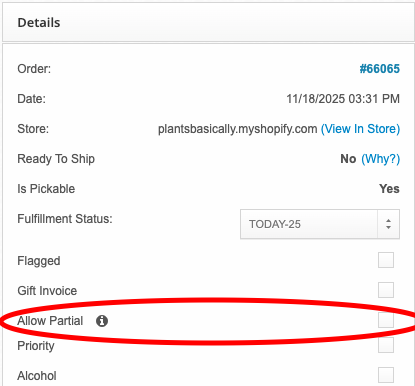
- In the Details section, check Allow Partial.
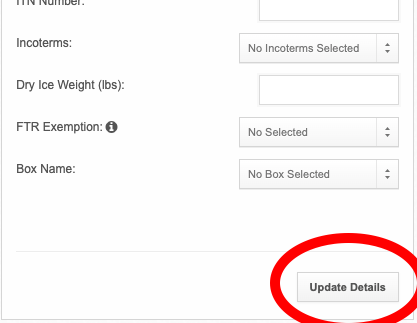
- Click Update Details to save your changes.
- All in-stock items will move forward through fulfillment immediately. Any remaining items will ship once inventory is replenished.
Automate Partial Shipments
If you would like to automate when partial shipments are allowed, your Account Manager can set up a trigger that enables partial shipments for all backordered products or specific SKUs.
This approach works best if you allow preorders or continue selling items while awaiting restock.
Timelines in this article follow our service level agreement. Questions? Email support@nicecommerce.com.