
Orders are placed on backorder when one or more SKUs in the order are out of stock. These orders will not ship until the missing items are replenished or the order is set to Allow Partial Shipping.
When to Review Backorders
In addition to reviewing Order Holds daily, you should review all backorders regularly to support timely fulfillment and proactive communication with your customers.
Follow the steps below to locate and review backordered items in ShipHero. The process follows the same flow as checking for address or other order holds.
Step 1: Navigate to Orders
- From your ShipHero dashboard, go to Orders in the main menu.
- Click the drop-down arrow and select Manage Orders.
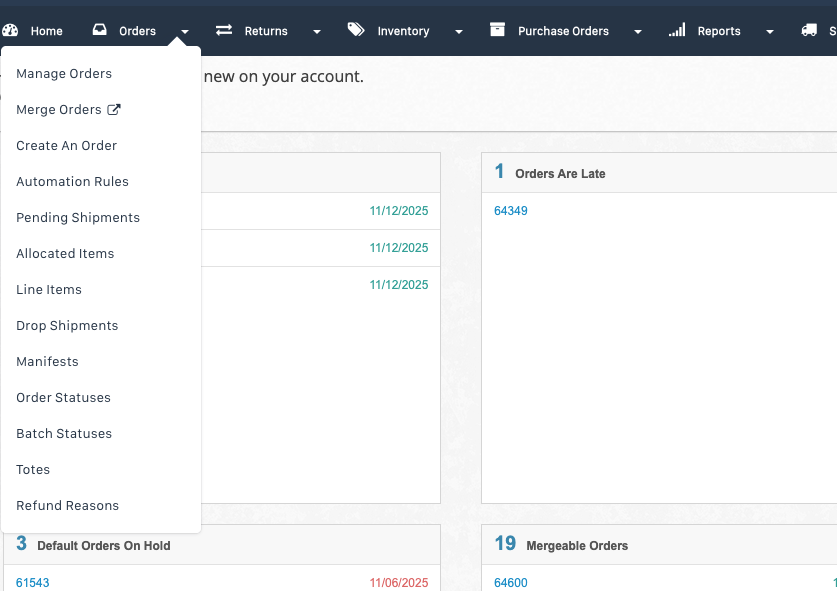
Step 2: Update Order Filters
Apply the following filters to show only orders currently waiting on backordered goods:
| Filter | Setting |
|---|---|
| Order Date | We recommend a date range starting at least 6 months back and ending on today's date. |
| Fulfillment Status | Unfulfilled |
| Ready to Ship | No |
| On Backorder | Yes |
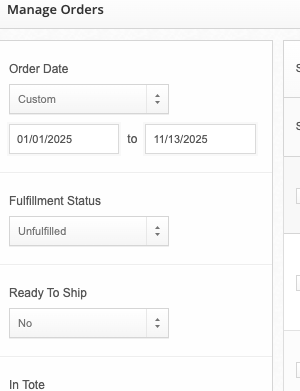
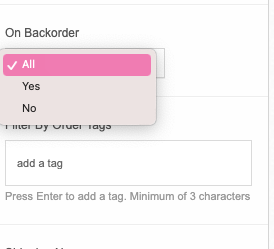
Optional: Search by SKU
To find specific items or see how many orders are affected by a backordered SKU:
- Scroll down the sidebar to Filter by SKU.
- Enter the SKU you want to search for.
- Select both checkboxes:
- Partial Match
- Include Kit Components
This helps you see all related backordered items, including those that are part of a bundled kit.
Step 3: Review Affected Orders and Choose a Resolution
-
Review the filtered list and note the affected orders. On each order number page, check the Total Backordered column to identify which products are backordered.
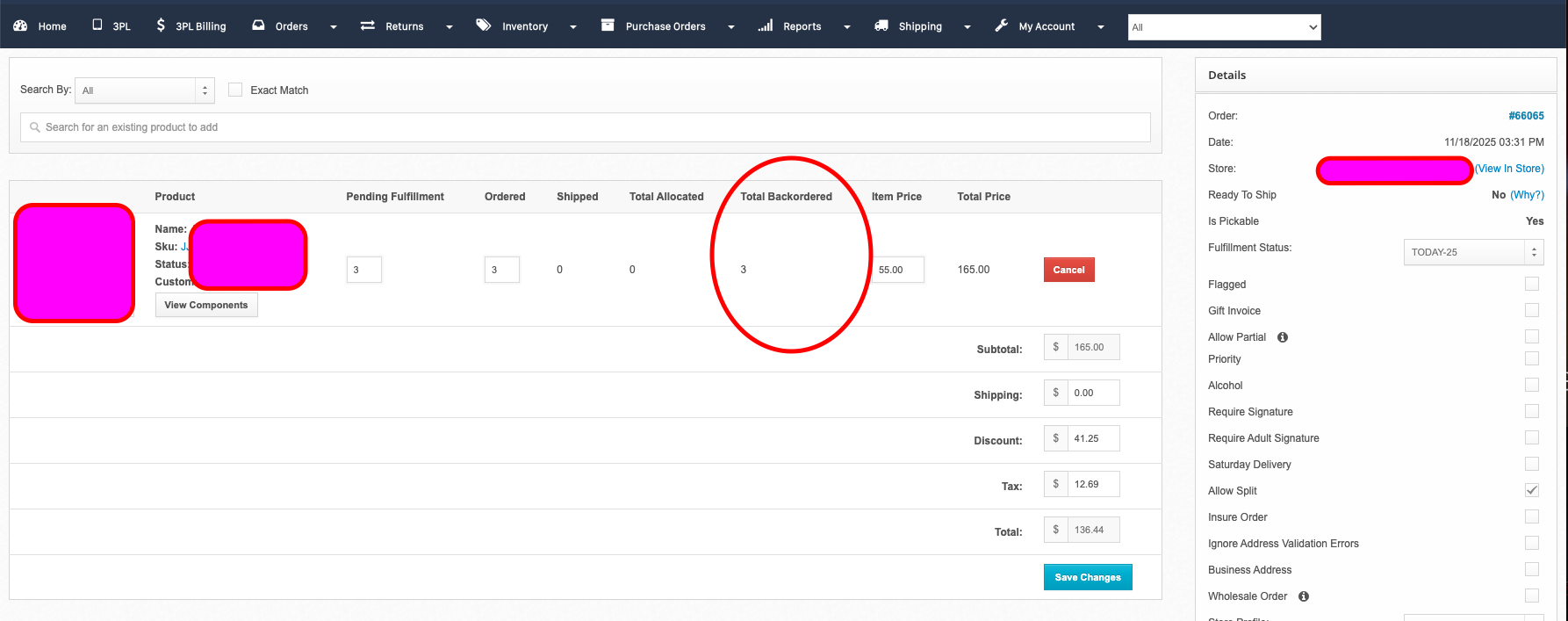
-
Determine the best course of action:
- Wait until the backordered items are back in stock before shipping. The entire order will remain on hold until then.
- Allow partial shipment of in-stock items in the order.
- Edit or cancel the order.
- Reach out to your Account Manager so we can explore other solutions with you.
Timelines in this article follow our service level agreement. Questions? Email support@nicecommerce.com.