
Create a manual order in ShipHero when an order is not placed through your eCommerce store and needs to be entered manually for fulfillment. Common uses include local pickups, third-party shipments, freight shipments, and special handling or internal brand orders.
Step 1: Start and Name Your Manual Order
- In ShipHero, go to Orders → Create an Order.
- Add an Order Number beginning with
MO_BrandName, using the appropriate format below.
| Type | Instructions | Example Format |
|---|---|---|
| Pickup | Include the name of the person picking up the order. | MO_BrandName_Pickup_[PickupPerson] |
| Third-Party | Include the shipping ID or other identification that matches the third-party label, PO number, or other details uploaded to the drive. | MO_BrandName_3rdParty_[ID/CustomerName] |
| Freight | Include the shipment ID or other identification so we can recognize and match the order to the correct shipment. | MO_BrandName_Freight_[ID/CustomerName] |
| Standard Manual Order | Include any relevant identification, if applicable. | MO_BrandName_[ReferenceName] |
Clear naming helps us identify orders quickly, route them correctly, and prevent warehouse delays.
Step 2: Select the Shipping Method
Under Shipping Options, select the carrier and method that best fit your order.
| Order Type | Carrier | Method |
|---|---|---|
| Pickup | Generic | Pick Up |
| Third-Party | Generic | Third Party |
| Freight | Generic | Freight |
Pickup and outbound freight orders require an appointment. See Step 5 for scheduling requirements.
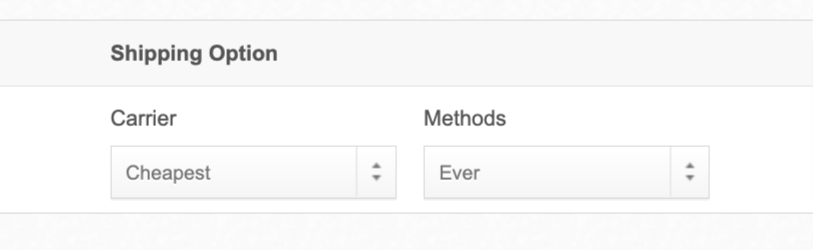
For standard manual orders (small parcel), select a specific carrier and method, such as FedEx Ground, or use ShipHero's rate-shopping options:
- Cheapest/Ever: Find the most cost-effective option.
- Cheapest/X Days: Factor in arrival timing to prioritize low cost within a set delivery window.
Step 3: Add Products to the Order
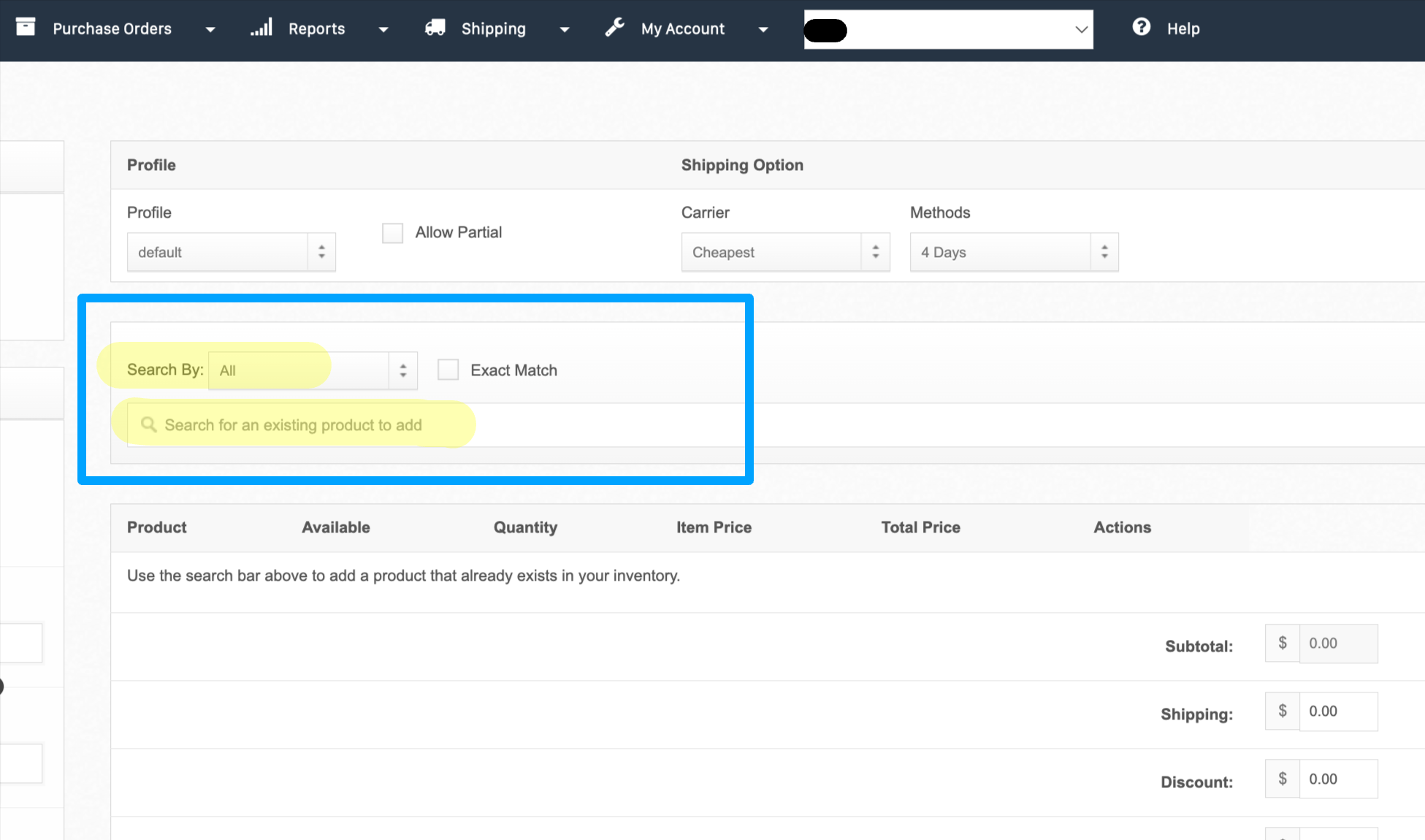
- In the search field below Profile and Shipping Options, search by SKU (recommended) and select the correct item. It will appear as a line item below.
- Enter the required Quantity in the Product line item.
- Repeat for each SKU on the order.

Double-check SKU spelling and case sensitivity to avoid “item not found” issues. If you cannot find a product in the dropdown, contact your account manager at support@nicecommerce.com for assistance.
Step 4: Save and Verify
- Once you have finished building your order, click Save Order.
- Confirm the order appears in ShipHero's Manage Orders tab (Orders → Manage Order).
Step 5: Schedule a Pickup or Outbound Freight Appointment
If your order is for a pickup or outbound freight shipment, schedule an appointment so we can prepare it in advance.
Pickup orders must be scheduled at least 48 hours before pickup. Outbound freight must be scheduled at least 4 business days in advance.
- Pickup orders: Schedule your in-person pickup appointment.
- Outbound freight: Upload freight paperwork directly to the order or email it to support@nicecommerce.com. Schedule your freight pickup appointment.
Need Help?
If you are unsure which shipping method to select or something is not working, contact your account manager and include:
- Manual order name.
- Shipping scenario: pickup, freight, third-party, or standard.
- Screenshot of the Create Order screen.
- Any third-party account details.
Providing these details helps us assist you faster.
Timelines in this article follow our service level agreement. Questions? Email support@nicecommerce.com.