
Orders move quickly through our fulfillment process once placed, but you can edit an Unfulfilled order in ShipHero before it is processed. Common updates include changing the shipping carrier or method, editing the shipping address, adding or removing a SKU (only if the order is not locked by a user or “In Tote”), and canceling an order.
Five Key Rules for Updating Orders
- Only Unfulfilled orders can be edited or canceled. If an order is marked Fulfilled, it has already been picked, packed, and shipped.
- SKU changes for Unfulfilled orders marked “In Tote” must be made by your Account Manager. You can still edit addresses and shipping methods, but not products.
- Adding or deleting SKUs on “In Tote” orders without your Account Manager moves the order to the back of the fulfillment queue for re-picking and processing.
- Always make order edits in ShipHero. ShipHero provides the most accurate, up-to-date view of fulfillment status. Do not adjust order tiers, which are for internal warehouse use only.
- Only cancel orders in Shopify. It is good practice to place an Operator Hold on the order in ShipHero first to pause it in the fulfillment cycle, especially if it is already “In Tote.”
Check an Order’s Fulfillment and Tote Status
- In ShipHero, go to Orders → Manage Orders.
- Filter by Fulfillment Status: Unfulfilled to remove fulfilled orders from the list.
- Make sure the Order Date filter is set appropriately. The default is “Today.”
- Locate your order number and check its In Tote status:
- Blank field: The order is not currently in a tote, and fulfillment has not started. You can freely edit the order, subject to the user-lock restriction for SKU changes.
- Field contains text: The order has already been picked and is being fulfilled. Only limited edits are allowed.
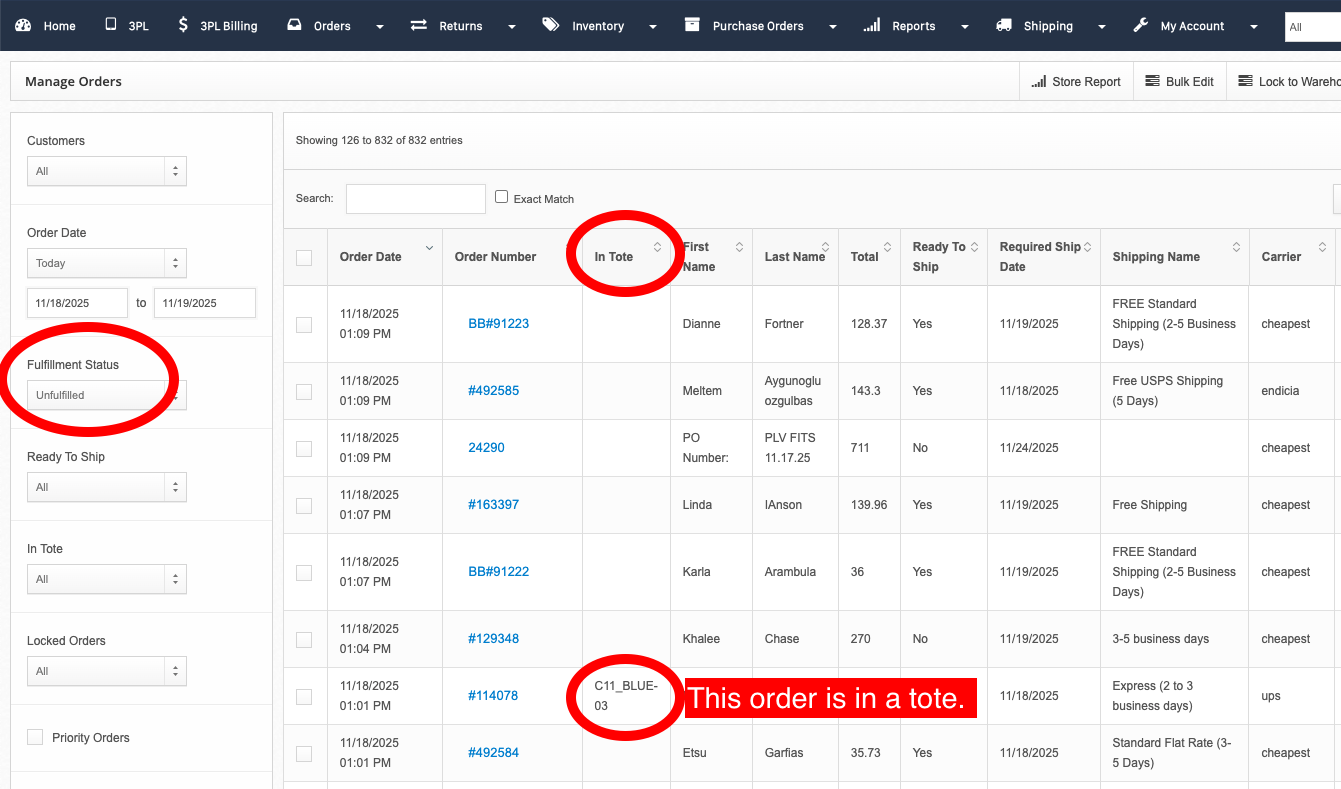
If you cannot find the order, it is likely already fulfilled and shipped. Change the Fulfillment Status filter to Fulfilled and search the results to verify. If you still cannot locate it, double-check that your Order Date range is set appropriately.
Edit an Unfulfilled Order That Is Not “In Tote”
- Open the order in ShipHero.
- Scroll to the bottom of the page, check Operator Hold, and click Update. This pauses fulfillment while you make changes.
- Update the address, shipping carrier or method, or SKUs as needed. SKU changes are only available if the order is not locked by a user.
- When you are finished, uncheck Operator Hold and click Update to resume fulfillment.
Edit an Unfulfilled Order That Is “In Tote”
- Open the order in ShipHero.
- Scroll to the bottom of the page, check Operator Hold, and click Update. This pauses fulfillment while you make changes.
- Update only the address or shipping method yourself.
- For SKU changes, contact your Account Manager with the necessary edits while the order remains on hold.
- When the changes are complete, uncheck Operator Hold and click Update to resume fulfillment.
Cancel an Order
You can cancel an order directly in Shopify as long as it has not been fulfilled, even if it is already marked “In Tote.”
Step 1: Place an Operator Hold in ShipHero
- Open the order in ShipHero under Orders → Manage Orders.
- Scroll to the bottom and locate the Holds section on the right.
- Check Operator Hold, then click Update to pause fulfillment. This safeguards against the order being shipped while you process the cancellation.
Step 2: Cancel the Order in Shopify
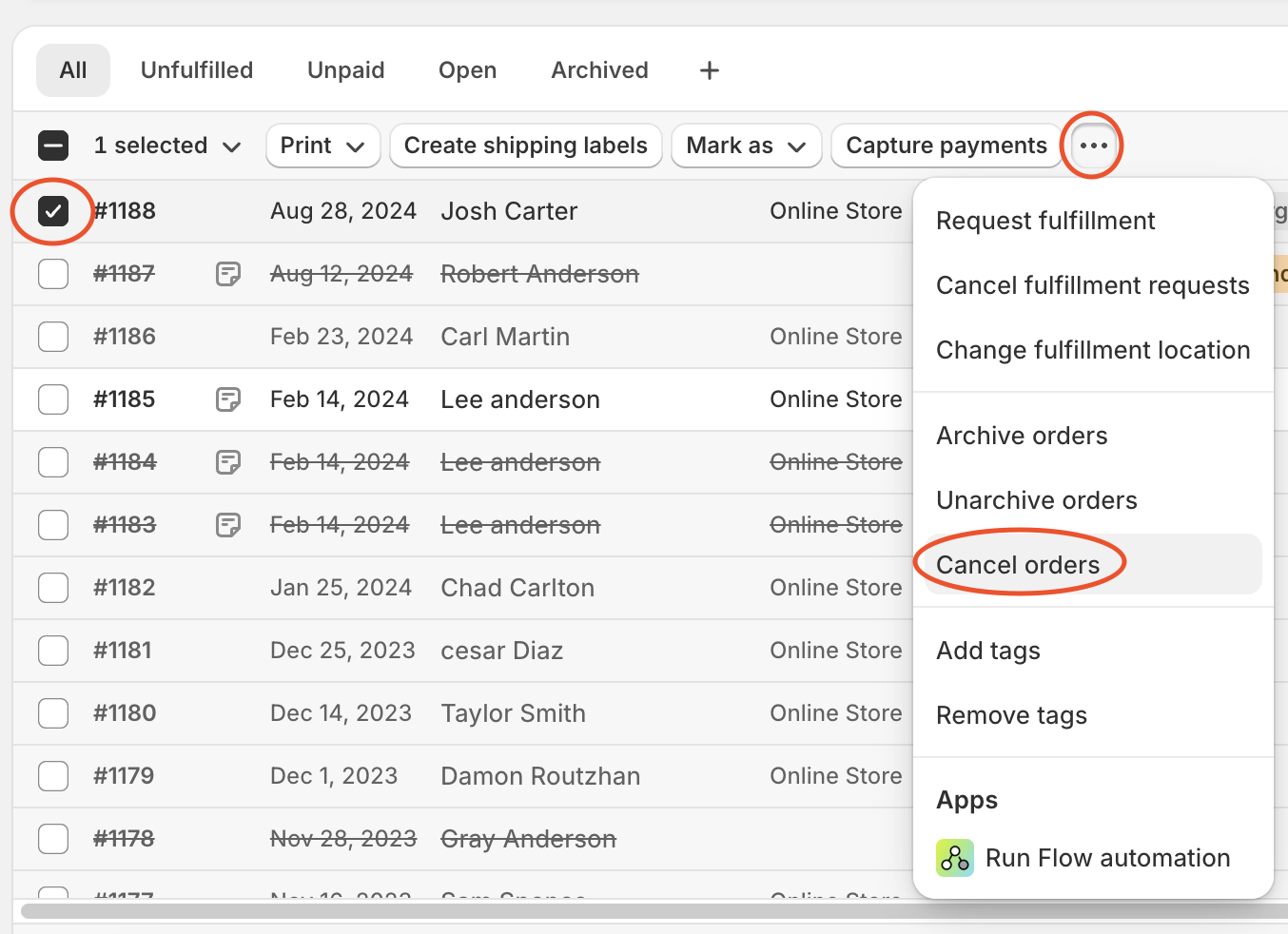
- In Shopify, go to Orders.
- Locate the order you want to cancel and check the box beside it.
- Click the ••• (ellipsis) menu in the navigation bar and select Cancel Orders.
- Complete the required fields in the pop-up window and click Cancel Order to finalize.
Timelines in this article follow our service level agreement. Questions? Email support@nicecommerce.com.