
If you see “No” in ShipHero’s Ready to Ship column, the order is on hold, either automatically for checks such as address or payment validation, or manually by our team for review. This guide explains how to find, understand, and resolve held orders.
How to Find Orders on Hold
Orders on hold will not ship until the hold has been addressed and updated in ShipHero.
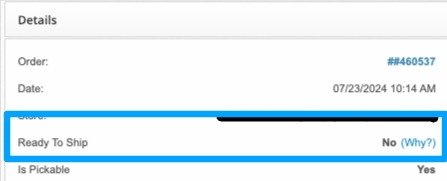
Check for held orders in ShipHero each day:
- Go to Orders → Manage Orders.
- Use the filters on the left side of the screen:
- Order Date: We recommend a range from at least 6 months back through the current date.
- Fulfillment Status: Unfulfilled.
- Ready to Ship: No.
- Select Any Holds to review all hold types at once, or choose a specific type.
- Review the orders that appear. The Order Hold column shows each order’s hold type.
Watch How to Find Order Holds in ShipHero
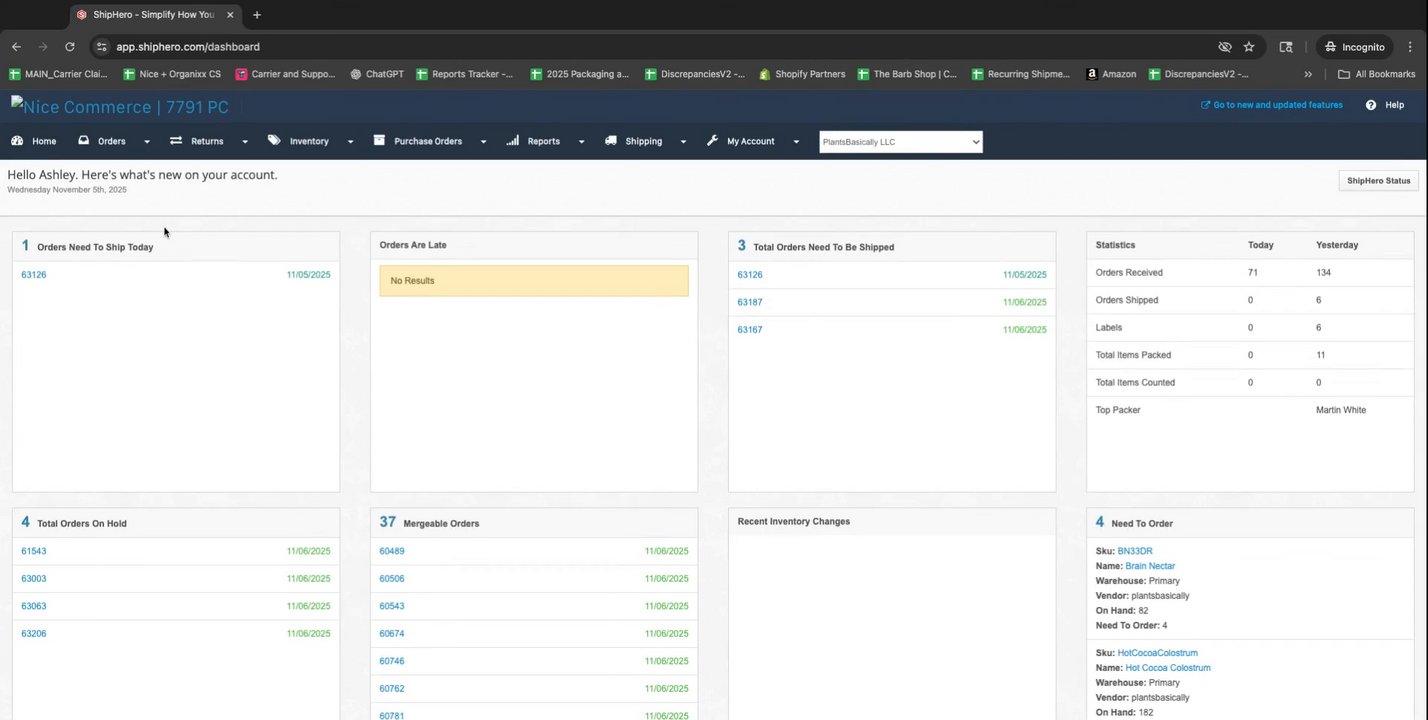
Video duration at 1×: 1 min 26 sec. Displayed playback durations: 1 min 47 sec, 1 min 26 sec, 1 min 11 sec, 57 sec, 50 sec, 43 sec, and 34 sec.
Types of Order Holds and How to Resolve Them
ShipHero has four main types of holds. Each requires a different resolution.
1. Address Hold
An address hold means the shipping address failed ShipHero’s validation, often because of a missing apartment number, incorrect ZIP code, or formatting error. We may also have flagged the address for you to verify or update.
To resolve an address hold:
- Open the order in ShipHero.
- Check the Shipping Address field for errors or missing information.
- Click the pencil icon in the Shipping Address section and update the appropriate fields.
- If you’re confident the address is valid but it still fails validation, click Ignore Address Validation Errors in the Order Details section. This forces ShipHero to recognize the shipping address as entered.
- Save your changes and verify that Ready to Ship shows “Yes” in the Details section.
Watch Address Holds and How to Resolve Them
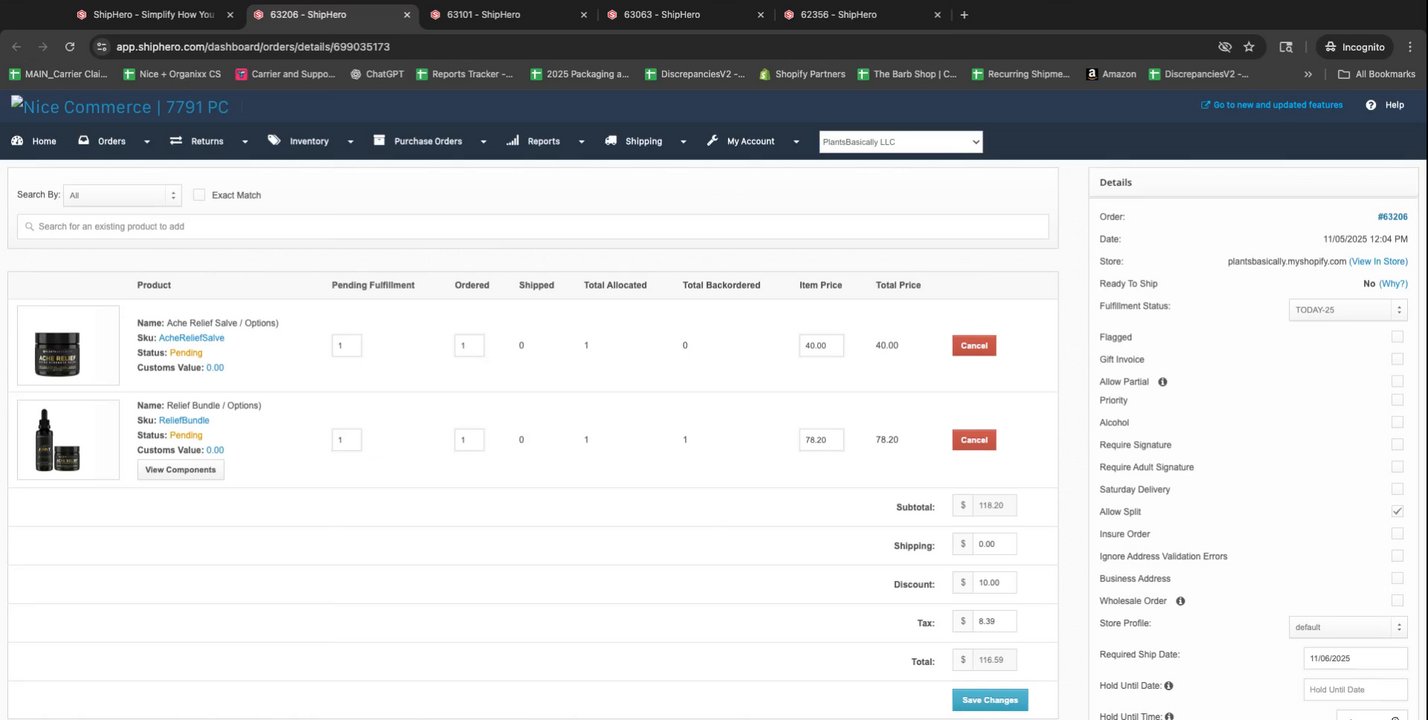
Video duration at 1×: 45 sec. Displayed playback durations: 56 sec, 45 sec, 37 sec, 30 sec, 26 sec, 22 sec, and 18 sec.
2. Payment Hold
A payment hold means there is an issue processing the customer’s payment from Shopify because the payment failed or has not been accepted, or a payment hold was added manually.
To resolve a payment hold:
- Log in to your ecommerce platform, such as Shopify or WooCommerce, and confirm the payment status.
- If the payment is successful, you must manually remove the payment hold in ShipHero.
- Open the order in ShipHero.
- Click Clear Payment Hold in the top-right corner of the order screen.
- In the pop-up, enter your reason for clearing the hold and click OK.
- Verify that Ready to Ship shows “Yes” in the Details section.
Watch Payment and Fraud Holds and How to Reconcile Them
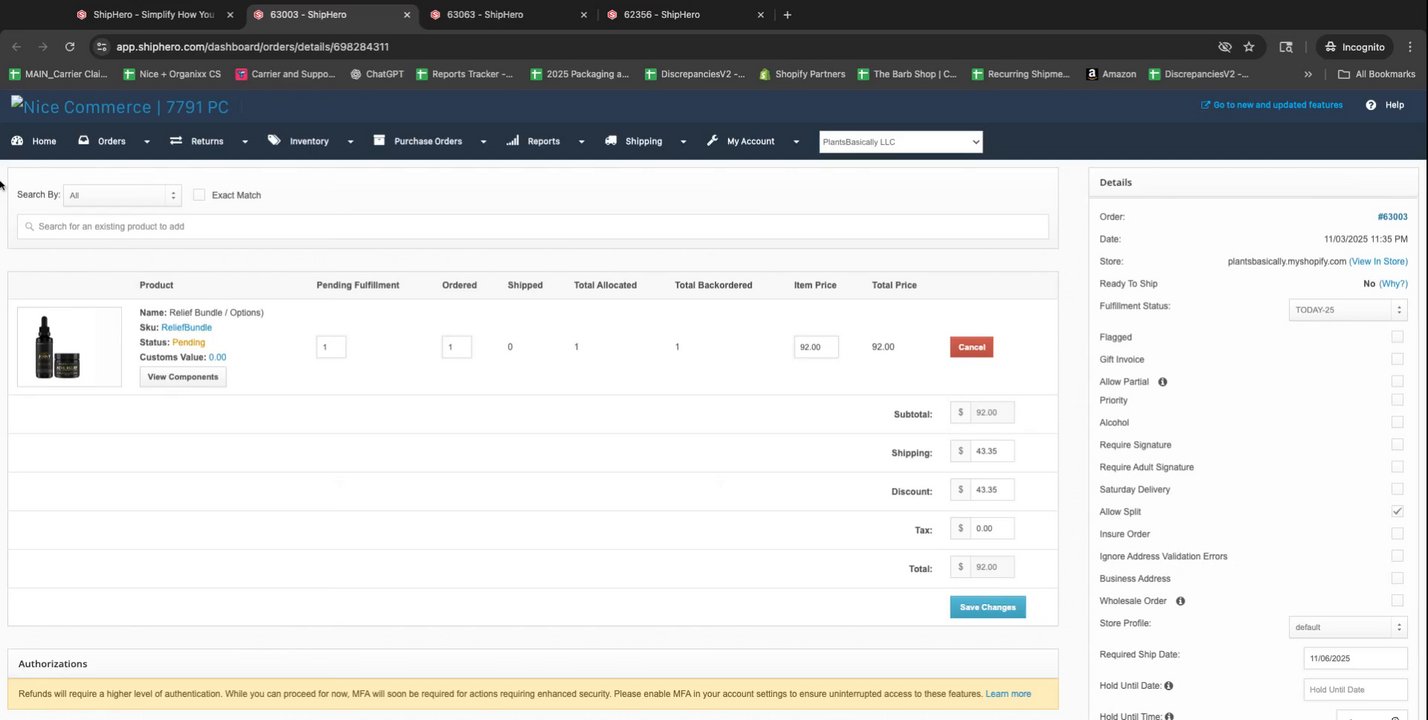
Video duration at 1×: 1 min 1 sec. Displayed playback durations: 1 min 17 sec, 1 min 1 sec, 51 sec, 41 sec, 36 sec, 30 sec, and 24 sec.
3. Fraud Hold
A fraud hold means your ecommerce platform flagged the order as potentially fraudulent and it needs investigation. This sometimes happens when the shipping and billing addresses differ or a credit card has failed.
To resolve a fraud hold:
- Review the risk indicators in your ecommerce platform.
- If you decide the order can be fulfilled, you must manually remove the fraud hold in ShipHero.
- Open the order in ShipHero.
- Scroll to the bottom and find the Holds section on the right.
- Uncheck Fraud Hold and click Update.
- Verify that Ready to Ship shows “Yes” in the Details section.
Watch Payment and Fraud Holds and How to Reconcile Them
Video duration at 1×: 1 min 1 sec. Displayed playback durations: 1 min 17 sec, 1 min 1 sec, 51 sec, 41 sec, 36 sec, 30 sec, and 24 sec.
4. Operator Hold
An operator hold is placed manually in ShipHero by our team or yours, or through an automation. It typically means something needs review or an update before fulfillment.
Keep these requirements in mind:
- Only unfulfilled orders can be placed on operator hold. If an order is already marked as Fulfilled, it has shipped and can no longer be edited.
- If an order is already in a tote (picked), let your Account Manager know before making SKU changes.
To place a manual operator hold:
- Go to Orders → Manage Orders in ShipHero and open the order.
- Scroll to the bottom and find the Holds section on the right.
- Check Operator Hold and click Update.
- Confirm in Order History that the hold was applied.
To resolve an operator hold:
- When the hold is no longer needed, go to Orders → Manage Orders in ShipHero and open the order.
- Uncheck Operator Hold in the Holds section and click Update.
- Verify that Ready to Ship shows “Yes” in the Details section.
Watch Operator Holds and How to Resolve Them
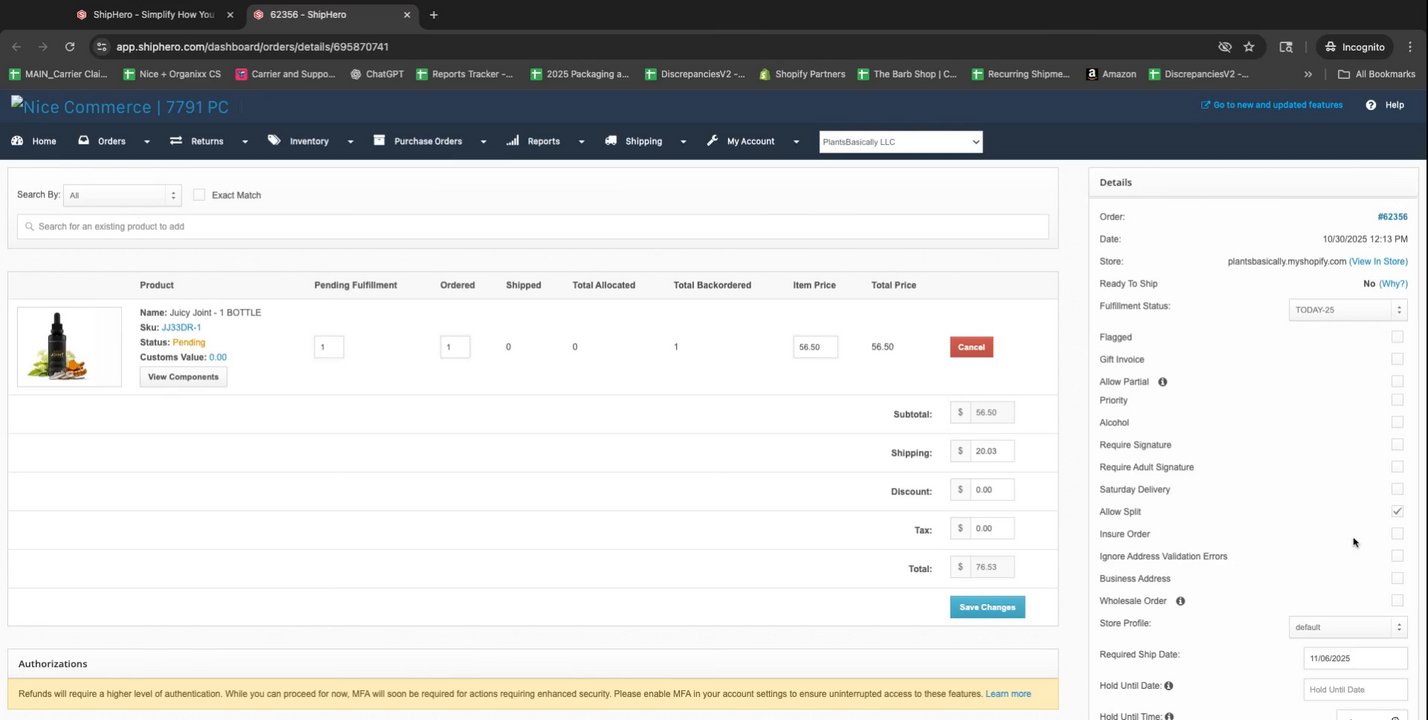
Video duration at 1×: 48 sec. Displayed playback durations: 1 min, 48 sec, 40 sec, 32 sec, 28 sec, 24 sec, and 19 sec.
Why We Place Operator Holds
We only place operator holds when something blocks fulfillment, such as needing to restock a pick bin or resolve a packing issue. We handle and resolve any operator holds we create internally.
How to Bulk Edit Holds (Optional)
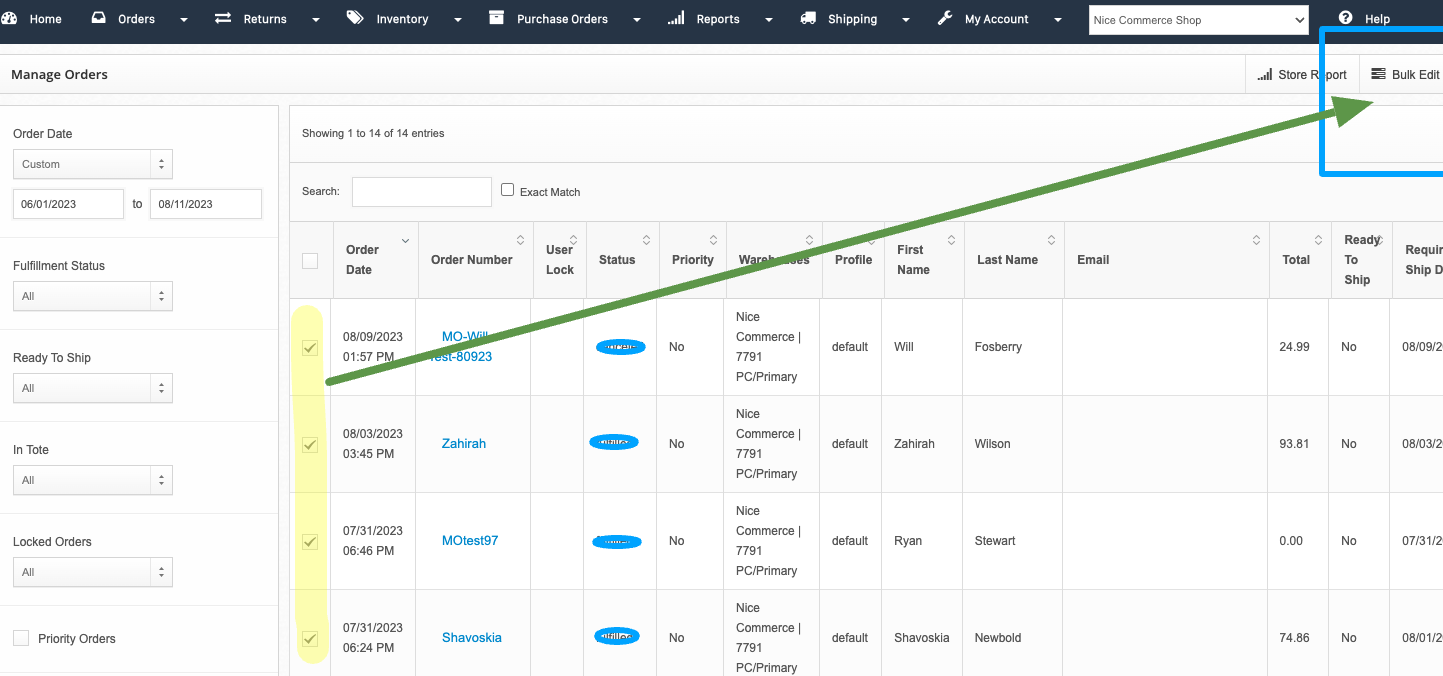
If you have a large volume of held orders, such as during a flash sale or a big promotion, you can use ShipHero’s Bulk Edit feature to update them all at once.
Use Bulk Edit only if you’re confident the same fix applies to multiple orders, such as clearing several address holds.
-
In your Manage Orders list, select the orders you want to bulk edit.
-
Click Bulk Edit in the right-hand corner.
-
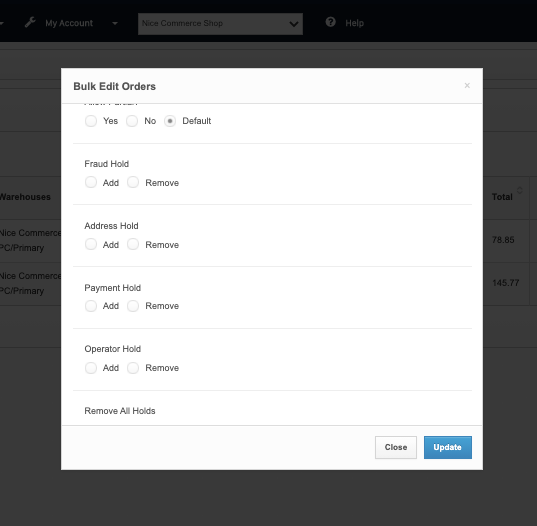
In the pop-up, choose the most applicable option to add or remove fraud, address, payment, or operator holds, then click Update.
-
Verify that Ready to Ship changes to “Yes” for all selected orders.
If the Order Still Isn’t Ready to Ship
If you’ve followed these steps and the order still isn’t ready to ship, we’re happy to help. When you contact your Account Manager, please include:
- The order number(s).
- The hold type(s), such as Address or Operator.
- Any notes or screenshots showing what you see in ShipHero.
These details help us resolve the issue faster without multiple follow-ups.
Timelines in this article follow our service level agreement. Questions? Email support@nicecommerce.com.