
Operator holds pause orders in ShipHero when something needs review or editing before fulfillment can be completed. You can place a hold manually or through an automation, and the order will not ship until the hold is removed in ShipHero.
When to Use an Operator Hold
Common reasons to place an order on operator hold include:
- SKUs in the order need to be changed, added, or deleted.
- Your customer has requested that the order be paused or canceled.
- The address needs to be changed or updated.
- An issue with the order needs to be investigated before fulfillment.
Orders on operator hold are paused at their current stage in the fulfillment process.
Only unfulfilled orders can be placed on operator hold. If an order is already marked as Fulfilled, it has shipped and can no longer be edited. If an order is already in a tote (picked), let your Account Manager know before making SKU changes.
Video Walkthrough
Watch Operator Holds and How to Resolve in Loom
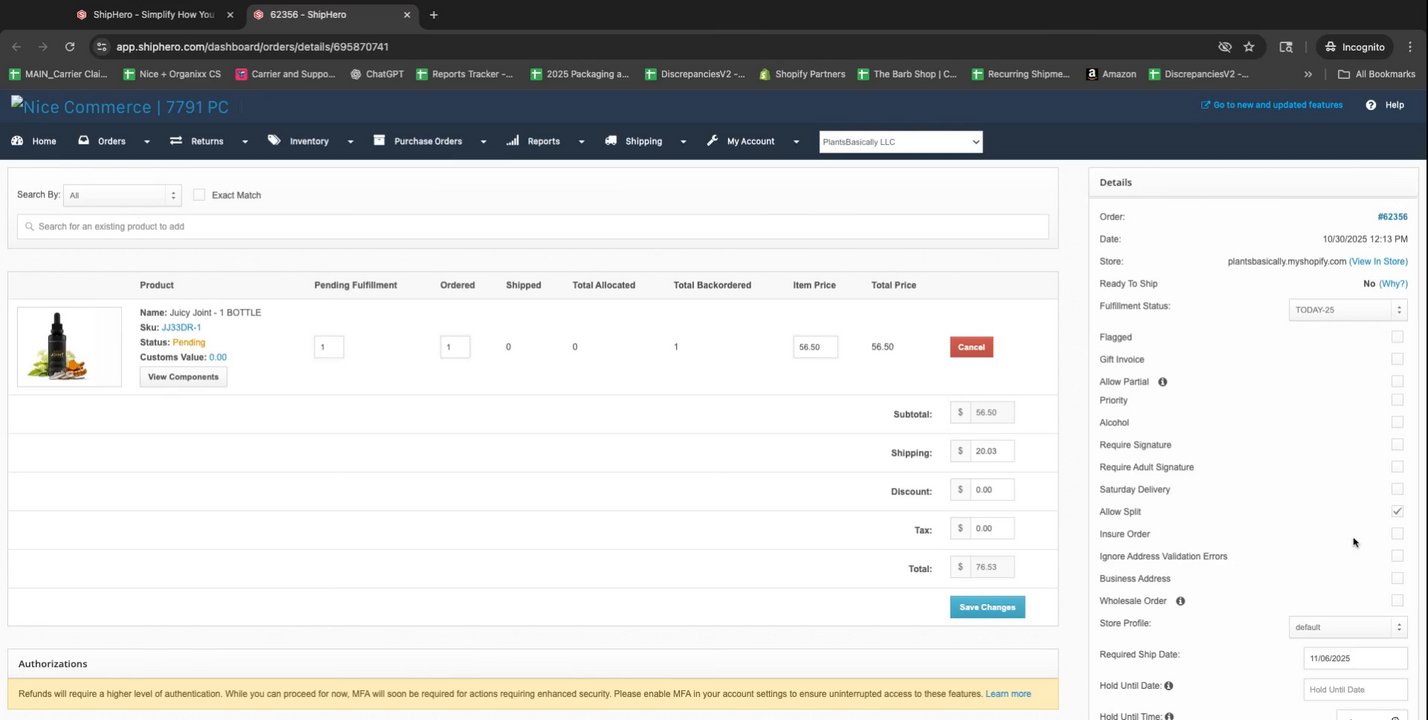
How to Place a Manual Operator Hold
- Open the order in ShipHero under Orders → Manage Orders.
- Scroll to the bottom and find the Holds section on the right.
- Check Operator Hold and click Update.
- Confirm in Order History that the hold was applied.
How to Resolve an Operator Hold
- When the hold is no longer needed, open the order in ShipHero under Orders → Manage Orders.
- Uncheck Operator Hold in the Holds section and click Update.
- Verify that Ready to Ship now shows Yes in the Details section.
Why We Place Operator Holds
We only place operator holds when something blocks fulfillment, such as needing to restock a pick bin or resolve a packing issue. We handle and resolve any operator holds we create internally.
Timelines in this article follow our service level agreement. Questions? Email support@nicecommerce.com.