
To pick up an order from Nice Fulfillment, create the order in ShipHero before scheduling your visit. For drop-offs, enter a PO for the units you plan to drop off at the unit level.
Before You Schedule
- Pickup orders: Create an order in ShipHero with shipping set to "Generic / Pick-Up": Carrier set to Generic and Method set to Pick Up.
- Drop-offs: Enter a PO at the unit level for the units being dropped off.
- Scheduling: Once your order or PO is created, schedule your pickup or drop-off.
Pickups and drop-offs must be scheduled at least 48 hours in advance. They cannot be scheduled on Mondays or after 1 p.m. on Fridays.
Step 1: Create an Order
In your ShipHero account, select Create an Order from the Orders dropdown.

Step 2: Add an Order Number
All orders must be entered before you schedule a pickup. We recommend including your company name and the name of the person who will pick up the order.
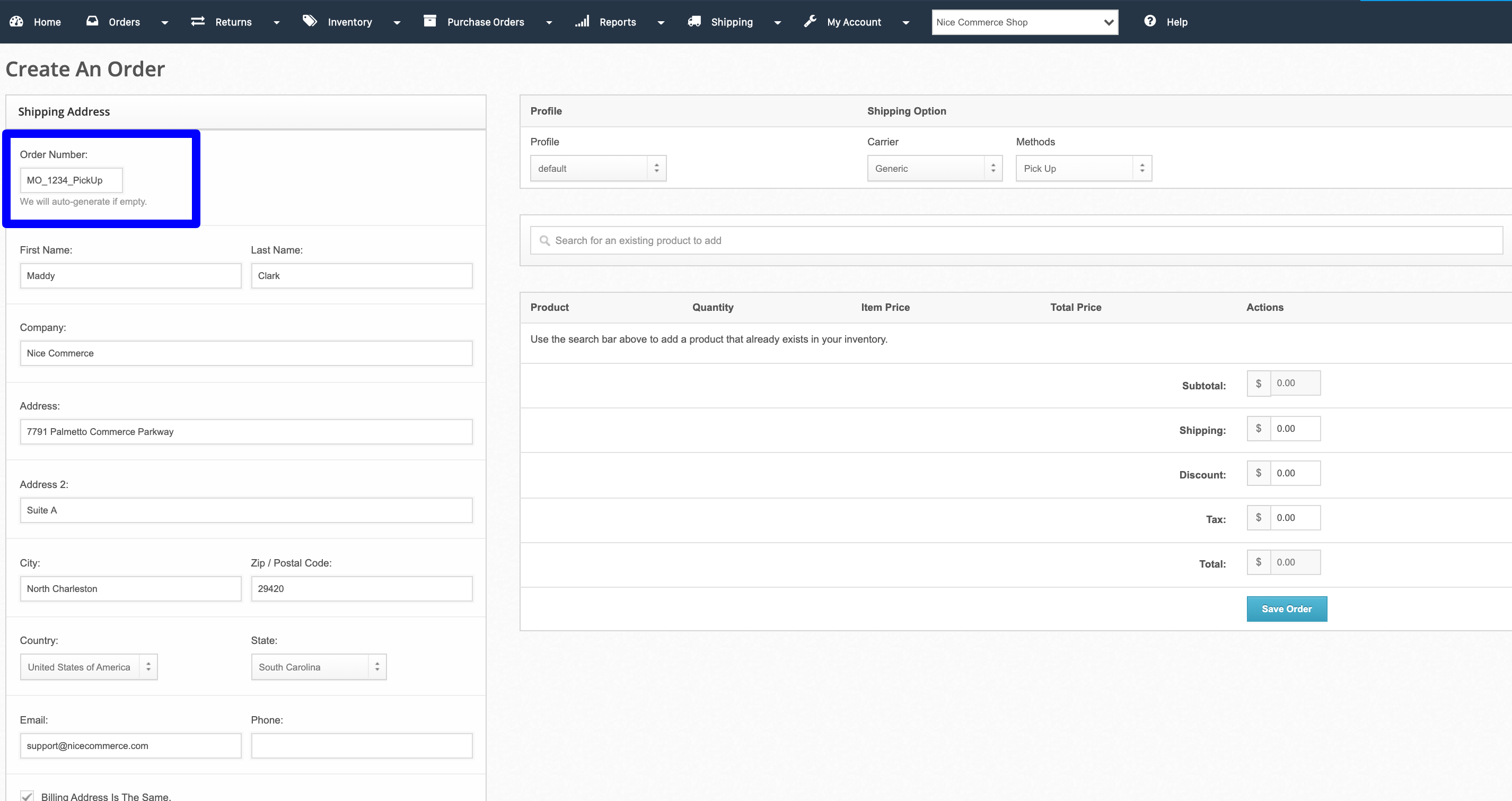
Step 3: Set Carrier Details
For all pickup orders, set Carrier to Generic and Method to Pick Up.

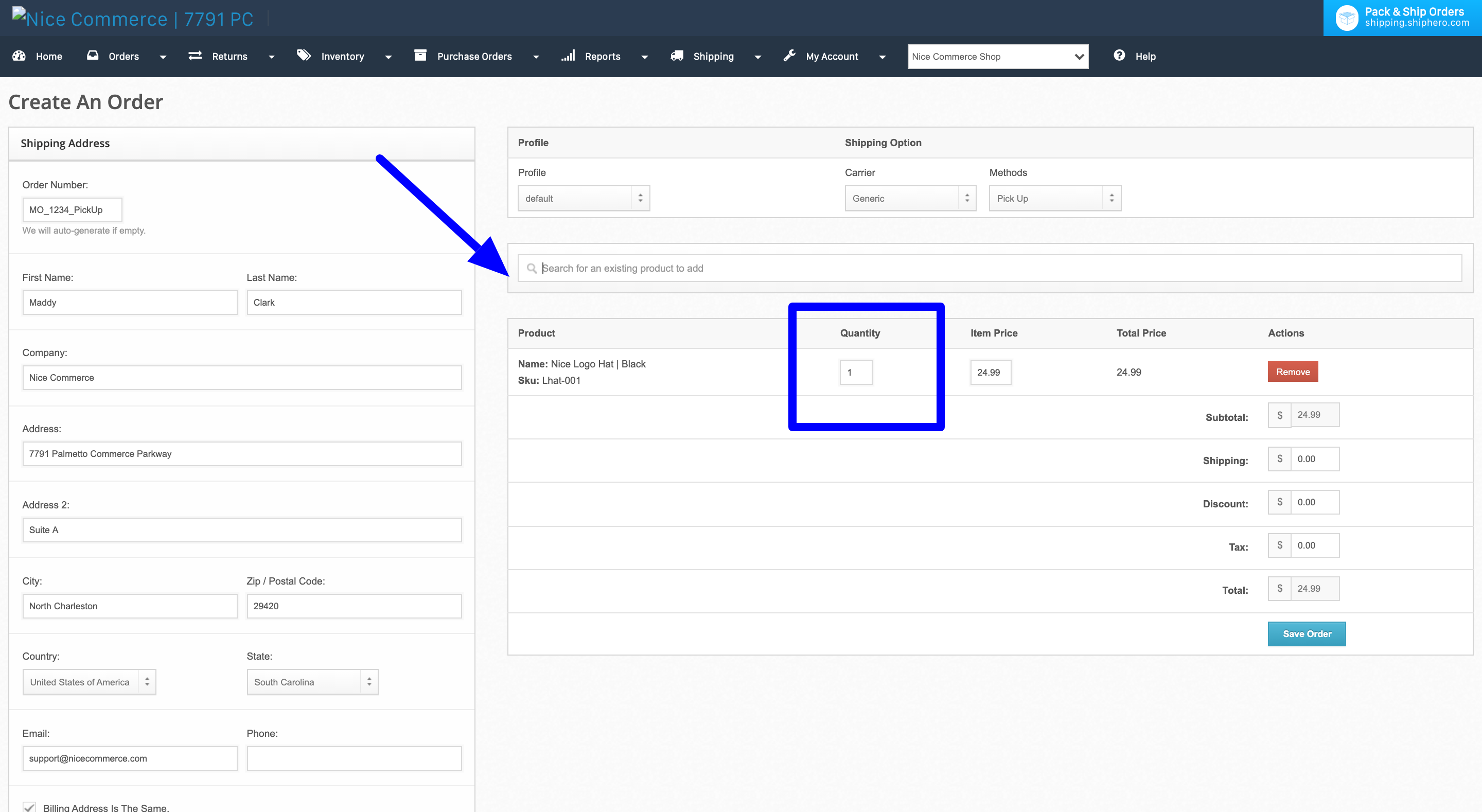
Step 4: Add Products and Update Quantities
Use the search field to find the product you want to ship, then add it to the order and update the quantity. We recommend searching by SKU.
If your product does not appear in the dropdown, contact Support@NiceCommerce.com.
Step 5: Save the Order
Select Save. Once saved, you can view the order in the Orders tab.
If you need to add special notes or details, notify Support@NiceCommerce and add them to the order's notes.
Step 6: Save and Schedule Your Pickup
Select Save, then schedule your pickup time.
- Schedule pickups or drop-offs at least 48 hours in advance.
- Do not schedule pickups or drop-offs on Mondays or after 1 p.m. on Fridays.
Timelines in this article follow our service level agreement. Questions? Email support@nicecommerce.com.